
 Livraison gratuite sur toutes les machines, en France, Belgique et Luxembourg


How to add games to Pandora Box?
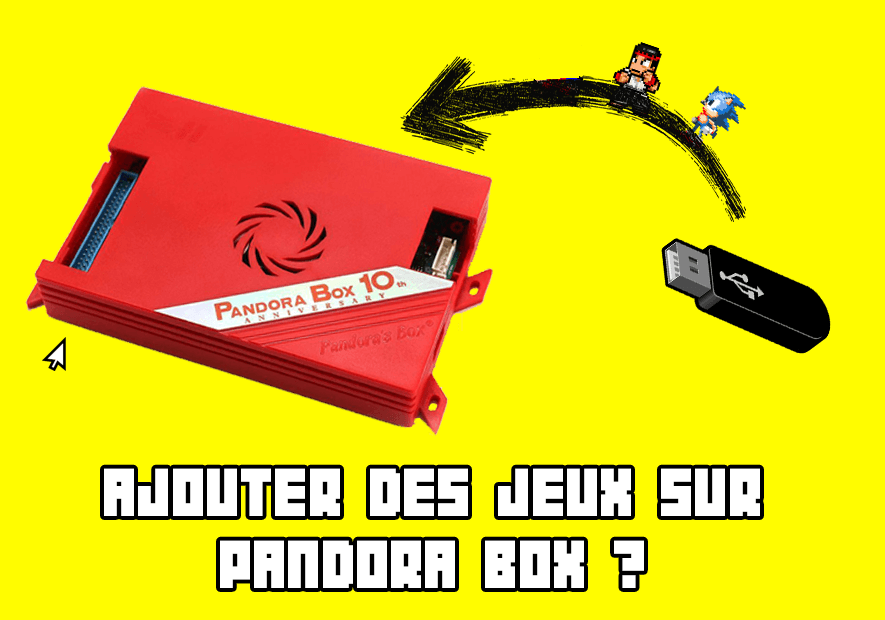
How to Add Games to Pandora's Box
The Pandora's Box DX and CX are popular retro game consoles, offering a wide range of classic games. For retro gaming enthusiasts, the ability to add new games is a compelling feature. In this article, we'll guide you step-by-step through adding games from various consoles to your Pandora's Box DX, CX, or 10th Anniversary to boost your arcade machine.
The Pandora's Box DX and CX are popular retro game consoles, offering a wide range of classic games. For retro gaming enthusiasts, the ability to add new games is a compelling feature. In this article, we'll guide you step-by-step through adding games from various consoles to your Pandora's Box DX, CX, or 10th Anniversary to boost your arcade machine.
1. Necessary material
- A USB 2.0 flash drive formatted in exFAT.
- A computer to download and transfer games.
2.a) Pandora DX et CX

1. Creating folders on the USB drive
For your Pandora's Box to recognize games, you need to organize the ROMs into specific folders. Here's the list of folders to create at the root of your USB drive:
- Nes :
roms_fc - Mega Drive :
roms_md - Super Nintendo :
roms_sfc - PlayStation :
roms_playstation - Final Burn Alpha et NeoGeo :
roms_fba2012 - MAME :
roms_mame2003
2. File placement instructions
A. Create the below mentioned folders in the root of the USB drive.
- NES: Place the unzipped .NES files in the roms_fc folder.
- Mega Drive: Place the compressed .MD files in the roms_md folder.
- Super Nintendo: Place the compressed .SFC or .SMC files in the roms_sfc folder.
- PlayStation: Place the unzipped .BIN files in the roms_PlayStation folder.
- Final Burn Alpha/NeoGeo: Place the compressed files in the roms_fba2012 folder. For NeoGeo, remember to include the NeoGeo BIOS in each game's compressed file.
- MAME: Place the MAME037 files in the roms_mame2003 folder. Note that not all MAME games are compatible.
B. Download and place the ROMs in the appropriate folders.
C. Insert the USB drive into the USB port of your Pandora's Box (make sure the console is powered off).
-
- For Pandora's Box CX, use the top USB port.
2.b) Pandora 10th
_7.jpg)
- Step 1: Insert the formatted USB drive into one of the Pandora Box 10th's USB slots and leave it there for a few minutes (3-4 minutes).
- Step 2: Insert the USB drive into your PC. A Windows message will prompt you to repair the drive; do not do so.
- Step 3: A "game" folder has been created on the USB drive. This folder contains another "roms_user" folder, which contains a folder for each emulator in the box. For example, "roms_dc" for Dreamcast.
- Step 4: Add the ROMs to the corresponding folders.
- Step 5: Insert the USB drive into the Pandora Box. The games on the USB drive will appear at the very bottom of the list.
- Warning: This tutorial does not work with the latest version of Pandora Box 10th (SD card on the front panel).
3. Activating new games
- Turn on your Pandora's Box.
- Go to the last page of the console menu.
- You should see new game pages available, containing the games you've added.
Concluding remarks
- Game compatibility may vary, especially for MAME and PlayStation games. Not all games will work perfectly.
By following these simple steps, you can expand your Pandora's Box game library and enjoy an even more diverse gaming experience. Happy gaming!
